How to Use Visual Studio Code for Beginners

 Photo Credit: Neowin
Are you enthusiastic about exploring the Visual Studio code editor as a noob? If yes, this article is for you. Visual Studio(VS) code is a lightweight code editor developed by Microsoft. It supports Windows, Linux, and MacOS operating systems. Visual Studio code can also be used as a text editor. It is written in typescript and Javascript.
This Integrated Development Environment (IDE) is developer-friendly and easy to use. This article will guide you through the:
- The system requirement for installing VS code
- The installation process
- Features of Visual Studio Code
- Navigating through Visual Studio code
System Requirement
To install the VS code editor you must have the following system requirement
-
1.6 GHz or a faster processor.
-
Above 1GB RAM space.
-
Windows, Linux, or MacOS operating system.
-
Stable internet connection for the installation process.
Getting Started
Follow these steps for easy installation of the VS code IDE
Step 1: Go to the Visual Studio code website
Step 2: Click on your preferred operating system(OS) and download. In this guide, I will be using Windows OS.
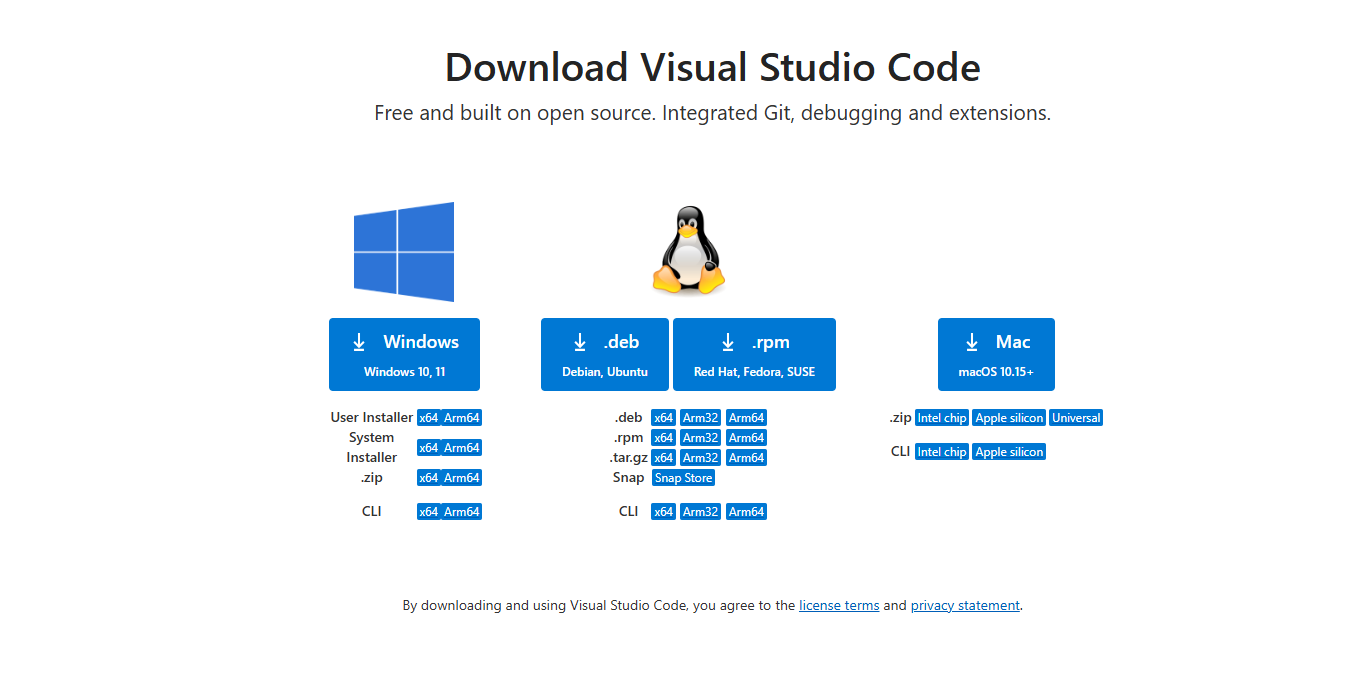 Fig.1:Click preferred operating system
Step 3: Locate the downloaded file in your folder
 Fig.2:Locate downloaded folder
Step 4: Click on open
 Fig.3: Click open
Step 5: Select the I accept the agreement and click on Next
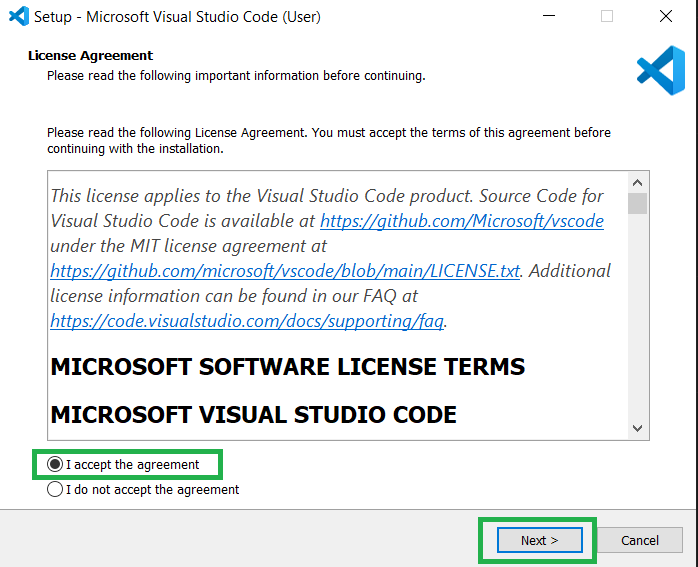 Fig.4: Click next
Step 6: Select the Create Desktop Icon and click on Next
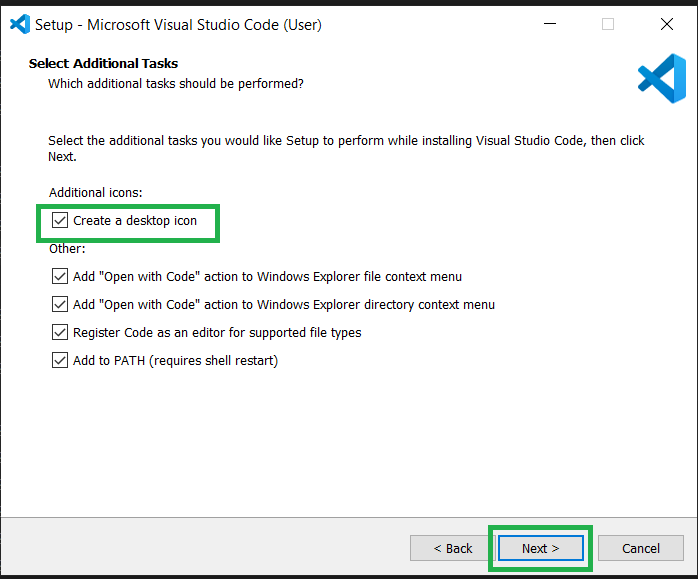 Fig.5: select desktop icon and click the next button
Step 7: Click on Install
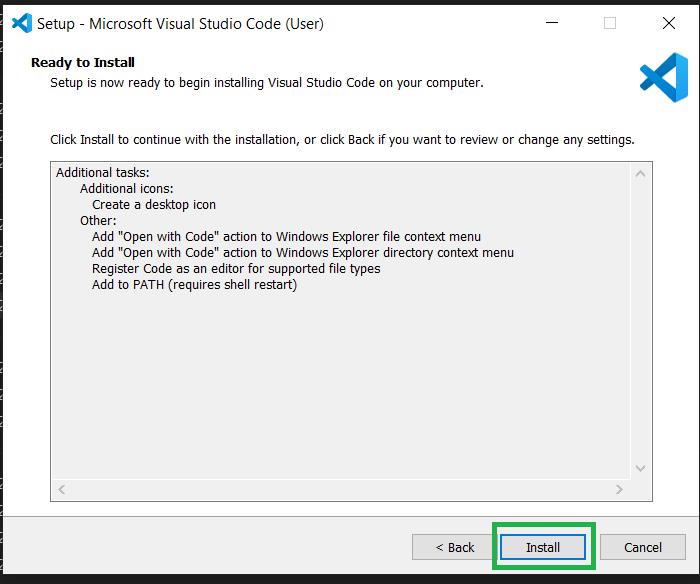 Fig.6: Click install
Step 8: Allow to install
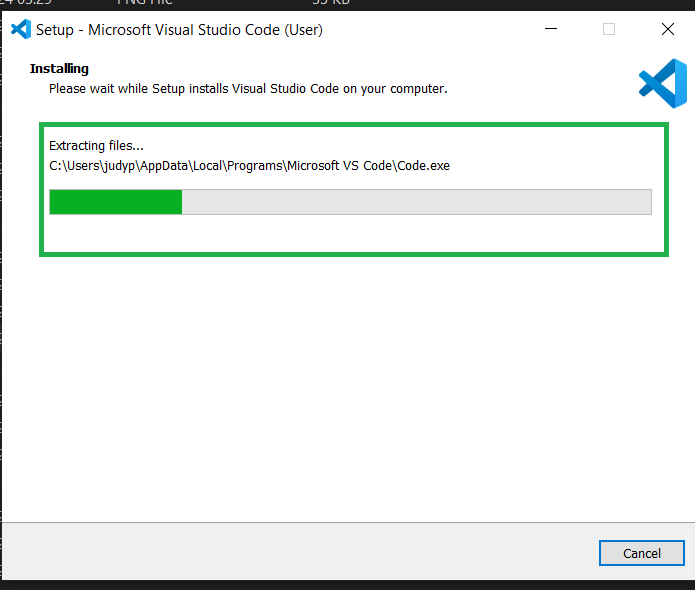 Fig.7: Allow to install
Step 9: Click on Finish
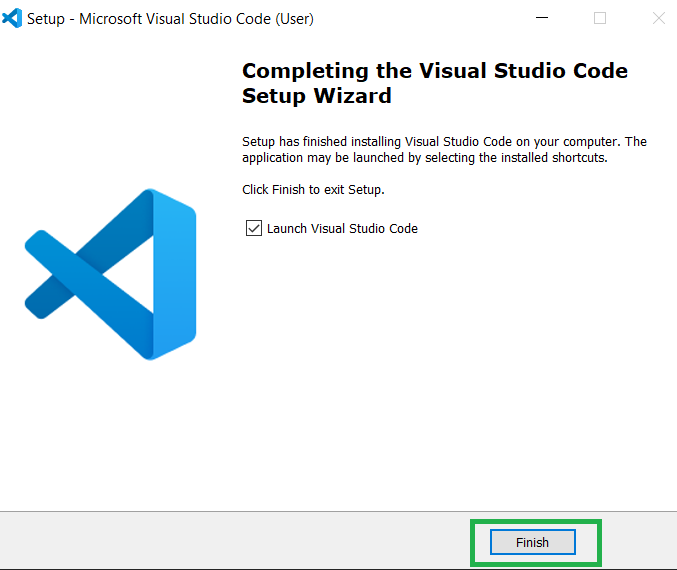
Fig.8: Click finish
Step 10: Visual Studio code will open with this interface
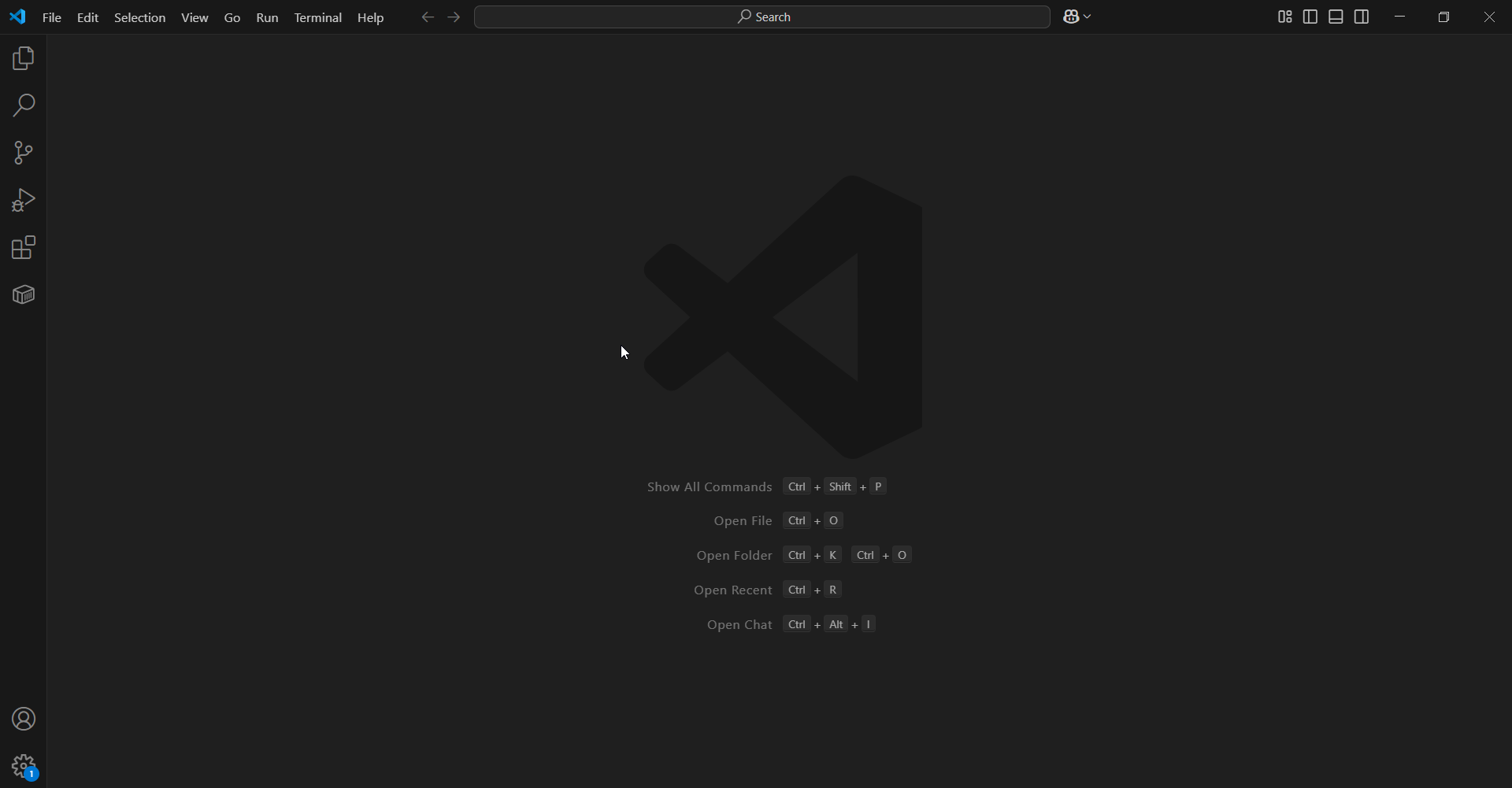 Fig.9: VS code interface displays
Features of Visual Studio Code
VS code IDE has a lot of beautiful features that enhance developers experience. Some of the features are listed below:
1. Debugging: This feature allows you to debug your code using a breakpoint.
2. Syntax highlighting: This feature highlights your code when there is a syntax error.
3. Code refactoring: This feature allows you to restructure your code without altering the behavior or performance.
4. Embedded Git: This embedded Git feature on VS code enables you to store your projects remotely.
5. Code Completion: This feature enhances the developer's speed and eases the stress of fully typing certain keywords or code. It auto-completes and also suggests code for you.
If you want to type a keyword in a particular programming language, VS code automatically displays various keywords related to what you want to type for you to select.
6. Custom theme: This feature allows you to customize the user interface of your VS code.
7. Keyboard shortcuts: VS code provides you with numerous keyboard shortcuts for navigating within the editor.
8. Extensions and support for other programming languages: This feature allows you to download and install various extensions into the IDE. It also supports various programming languages such as Java, Python, C++, Kotlin, etc.
Navigating Through Visual Studio Code
Navigating through VS code doesn't require much experience as a beginner. This IDE is simple and easy to navigate. Upon launching your VS code a beautiful interface will be displayed on your screen. I will explain each section of the User Interface (UI) using the label in the images below.
Activity Bar
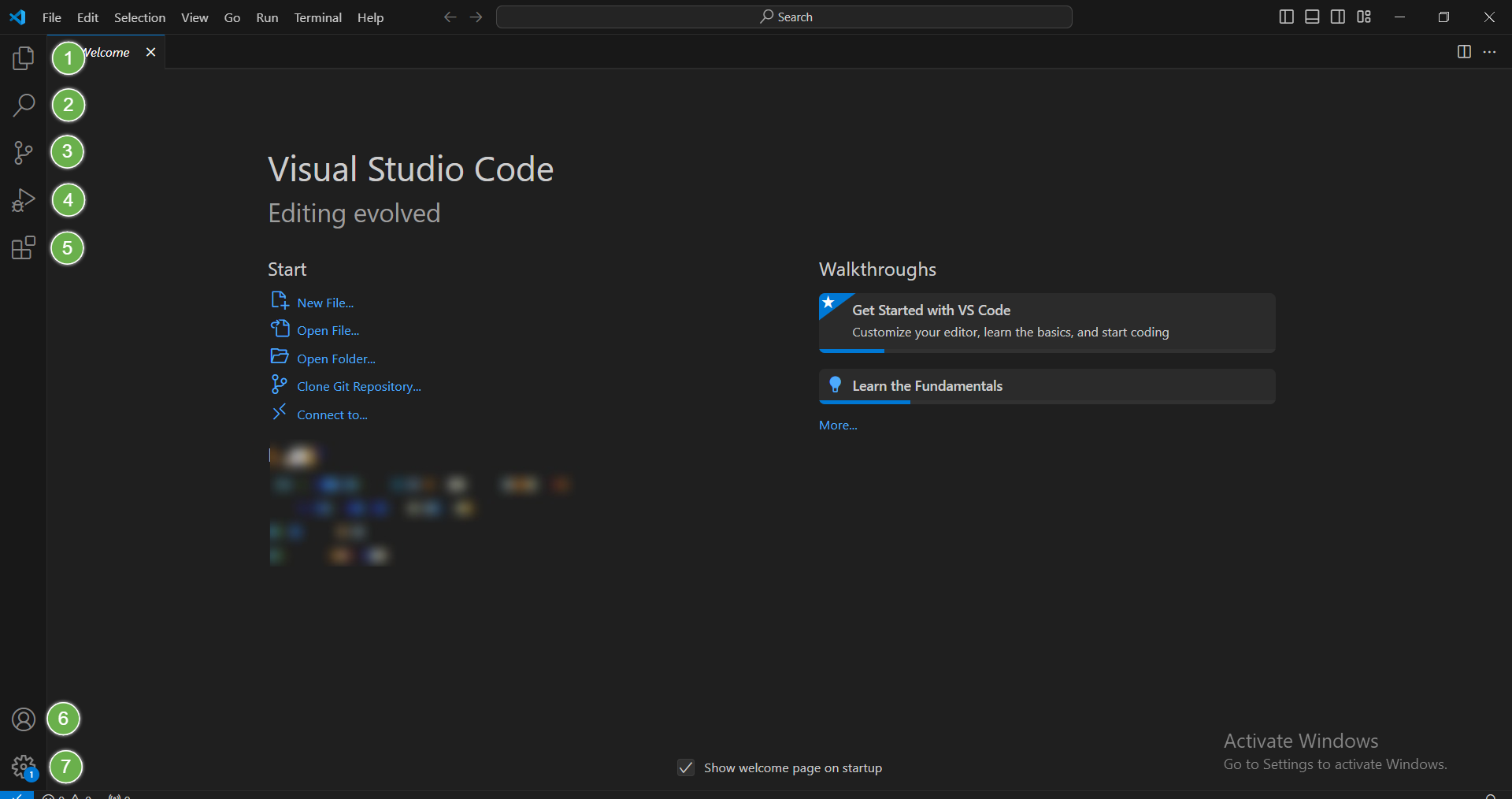 Fig.10: Activity bar
1. Explorer: This allows you to navigate between the files inside your folder.
2. Search: This allows you to search for files in the directory that open in VS code.
3. Source Control: This represents where you make your commits, push, pull, and other GitHub activities to and from your remote repository.
4. Run and debug: This allows you to run your code and debug.
5. Extension: This allows you to search for different extensions you want to download in the marketplace.
6. Account: This indicates your account on VS code.
7. Settings: This comes with different features that allow you to customize your VS code theme, check for updates, keyboard shortcuts, etc.
Welcome
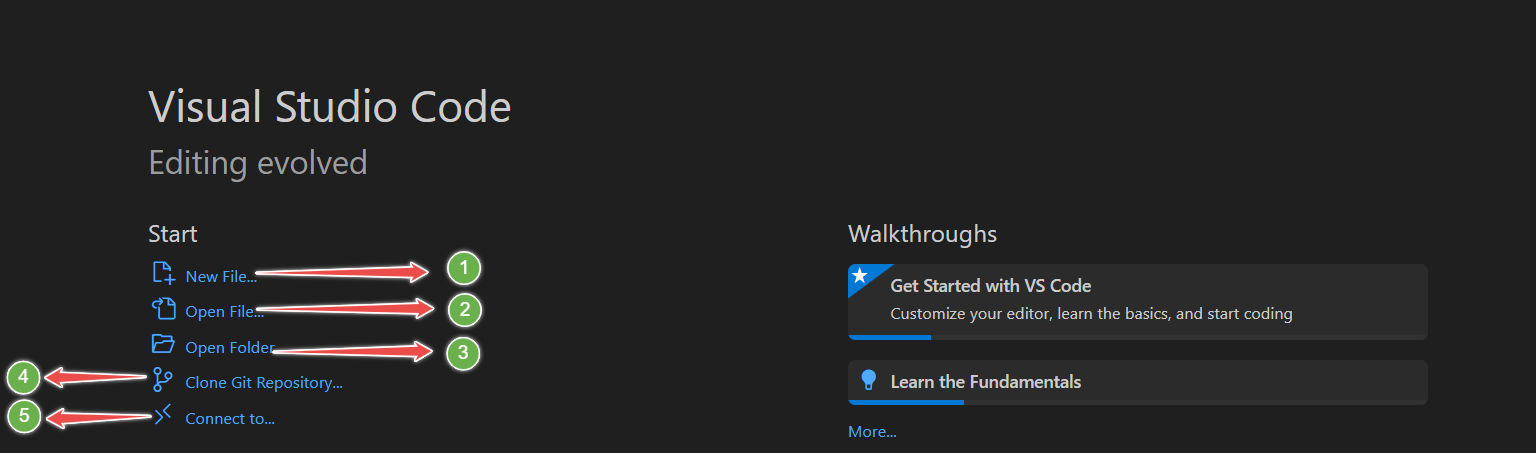 Fig.11: Welcome image
1. New file: Create a new file
2. Open file: Open previous files
3. Open folder: Open a folder from a different location on your PC.
4. Clone git repository: Allows you to clone a git repository
5. Connect to: Allows you to connect to a remote development workspace.
Menu Bar
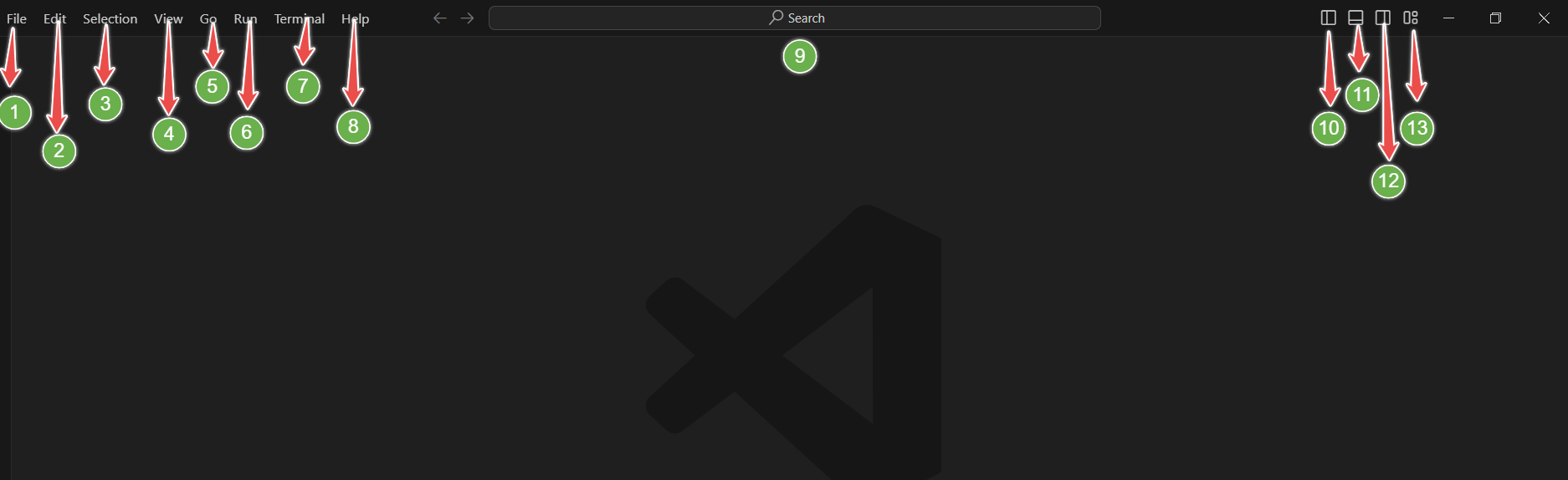 Fig.12: Menu bar
1. File: Create, save, open, files e.t.c
2. Edit: Edit the document or files you are working on.
3. Selection: This tab consists of keyboard options that allow you to make selections while working on your file.
4. View: Shows and allows you to switch between different views within VS code.
5. Go: Allows you to switch between editors.
6. Run: Allows you to run and debug your code.
7. Terminal: Allows you to run different git commands while working on your project.
8. Help: Provides different options on how to navigate through VS code. It also contains documentation, a playground, video tutorials, etc.
9. Search Bar: Search for files in the directory that is open in VS code
10. Toggle Primary Sidebar: Splits your screen into two parts in the left direction.
11. Toggle Panel: Opens the terminal where you can debug, run git commands, check for errors e.t.c
12. Toggle Secondary sidebar: Splits your screen into two parts in the right direction.
13. Customize layout: This allows you to customize your layout by setting the visibility. It also has some other cool features full screen mode, zen mode e.t.c
Wrap Up
VS code is a code editor whose IDE is easy for beginners to adapt. In this guide, we discussed
- How to get started with VS code.
- Some basic features of VS code.
- How to navigate through VS code.
Hope you enjoyed my article.Connect with me on Linkedln and Twitter